Required security profile permissions: File Storage Edit
You can specify your own custom AWS (Amazon Web Services) location for cloud storage, for files such as call recordings and screen recordings. If you turn off custom storage, your storage location reverts to the default system cloud storage.
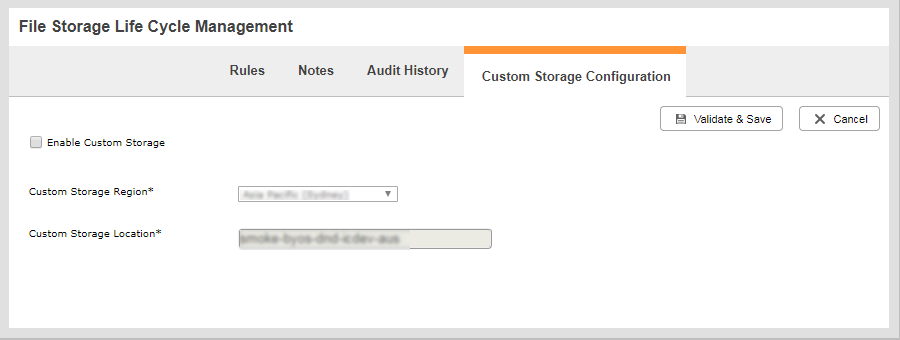
Enable Custom Storage
-
-
- Click the Custom Storage Configuration tab.
- Select the Enable Custom Storage checkbox.
- For Custom Storage Region*, select the appropriate custom storage region.
- For Custom Storage Location*, type an existing storage location name that is configured for the custom storage region you have selected.
- Click Validate & Save and in the pop-up message, click Yes.
Ensure that you have the permissions required to save data on the storage location you specify. You should create only one custom storage location.
When custom storage is enabled for your
Disable Custom Storage
-
- Click the Custom Storage Configuration tab.
- Clear the Enable Custom Storage checkbox.
- Click Validate & Save and in the pop-up message, click Yes.


