The Admin - Case Lookup report displays information about a specific case/survey.
-
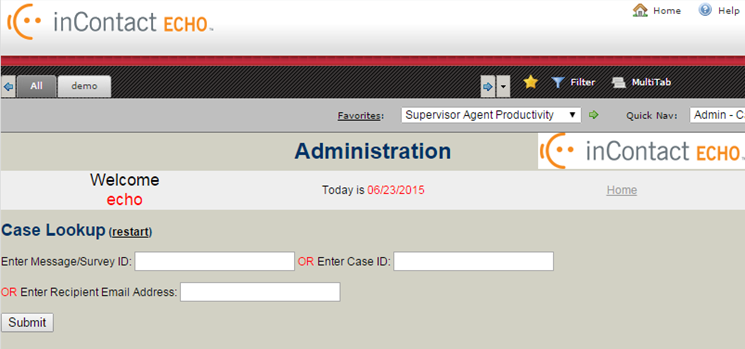
From the Home page, go to the Administration browse → Admin - Case Lookup.
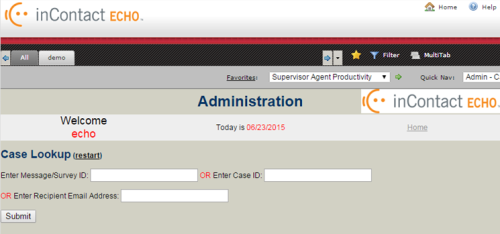
- To search for a survey, type one of the following:
- The Message/Survey ID number (found in the survey detail)
- The Case ID (found in the survey detail)
- The Recipient Phone Number (or Email Address)
- Click Submit.
The following page opens:
The Case Lookup results page opens.
After locating the survey you want to view, click See Detail. The survey detail page opens, and shows:
- Case ID
- Survey Details
- Questions that were asked to the customer and the customer’s answers
- An option to view the report in Microsoft Word
This report may also be accessed from the Supervisor Dashboard browse → Find CSR Report Card. If this survey contains a trigger and was worked through the trigger process, click See Trigger.


