Click the Star icon (indicated by the star) on the Navigation bar to create a Favorite.
-
Go to the page/report you need to designate as a Favorite.
-
Click the Star icon.

The Favorites page opens.
- Type the name that will appear in the favorite drop-down list the Name this favorite field.
- Click Save.

When naming the Favorite, use only letters or numbers. Do not use characters such as “&” or “-” in the name. These types of characters may cause the report to work incorrectly.
After you have created your first Favorite, a Favorites link appears in the navigation bar next to the Favorites drop-down list.
To Manage Your Favorites
Click the Favorites link.
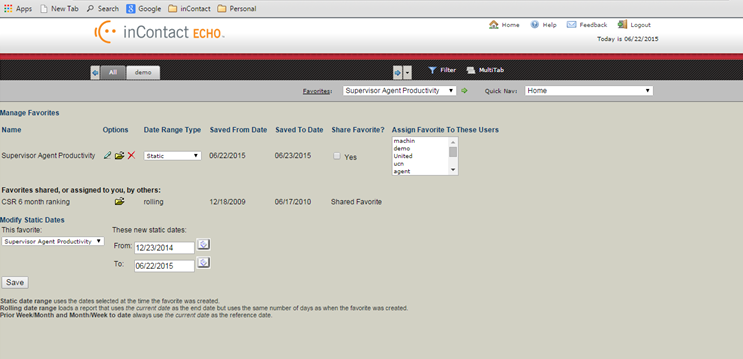
The Manage Favorites page opens.
The Options for Favorites include:
- Changing the Favorite name (“pen” icon)
- Opening a Favorite (“folder” icon)
- Deleting a Favorite (“red x” icon)
You can also select the date range format for an individual Favorite using the Date Range drop-down list.
The following formats are available:
- A Static date range uses the dates selected at the time the favorite was created.
- A Rolling date range loads a report that uses the current date as the end date but uses the same number of days as when the Favorite was created.
- Prior Week/Prior Month and Week to Date/Month to Date always use the current date as the reference date.


