inView includes a built-in chat feature that allows users to communicate with each other. This topic explains how to use this feature.
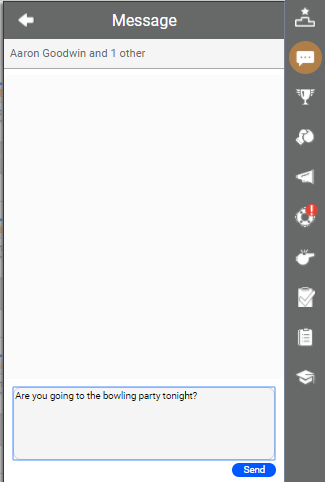
- Click the Messages icon (indicated by a speech bubble) on the toolbar to display the messaging pane, which allows you to read and respond to any currently active chat. If you do not see the chat you want, you can search for it by clicking the magnifying glass in the upper right corner of the pane.
-
 (OPTIONAL) Start a new chat.
- Click the plus sign in the upper left corner of the messaging pane.
- Click the users with whom you want to chat. You can filter the list by clicking the magnifying glass and typing all or part of a user's name. When you are finished choosing users, click Done.
- Type your message in the text box at the bottom of the messaging pane.
- Click Send or, if you change your mind, click the white arrow in the upper left corner of the messaging pane to return to your list of chats.
- When you are finished using the feature, click anywhere on the screen other than the messaging pane to close it.


