Work aids allow coaches, supervisors, and other users with appropriate permissions to send documents and files to agents. Thus, these items can be stored in one central location, effectively replacing the myriad sticky notes on agents’ cubicles. Call flow checklists, email or text templates, and policy reminders are examples of documents that might be work aids.
If you have new work aids waiting to be viewed, an exclamation mark in a red circle appears over the work aids icon (indicated by a life preserver) in the toolbar.
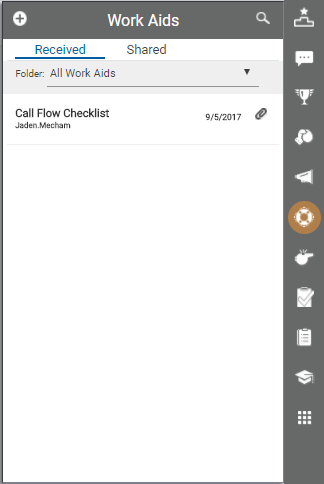
- Click the Work Aids icon on the toolbar to display the work aids pane, which opens on a tab with a list of work aids you have Received. If you do not see the work aid you want, you can search for it by clicking the magnifying glass in the upper right corner of the pane. You can also filter your display by folder if your organization stores work aids in this way.
-
 (OPTIONAL) Create work aids.
- Click the Add icon (indicated by a plus sign in a white circle) in the upper left corner of the work aids pane.
- Type a Title.
- Select a Folder from the drop-down of available folders in your inView system.
- Type a brief message in Details.
- Attach the work aid file.
- Click the Recipients icon (indicated by a blue circle in the upper left corner).
- Click the black triangle to the left of a group to drill-down, or click the name of the group to display a list of roles for that group.
- Select the checkbox for one or more roles. Your announcement will be shared with all users who have that role. Your access to other roles is based on your own role. For example: agents usually do not have security access to be able to send work aids to coaches or supervisors above their access level.
- Click Share or, if you change your mind, click Cancel to return to the list of work aids.
- Click a work aid to read its details, download the file, or both.
-
(OPTIONAL) Edit work aids.
- Click the work aid you want to edit.
- Click the Edit icon (indicated by a pencil) in the upper right corner of the announcements pane.
- Revise the Title, Folder, or Details, upload a different file, or do any combination of these.
- When you have finished your edits, click Share or, if you change your mind, click Cancel to return to the list of work aids.
- (OPTIONAL) To see a list of work aids you have shared, click the Shared tab.
- When you are finished using the feature, click anywhere on the screen other than the work aids pane to close it.


