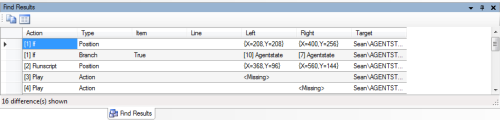
View Script Comparison Results
Scripts are sometimes very similar. However, those scripts, especially if they are large, might be difficult or nearly impossible to tell just by looking at them how similar or how different they are. The Compare feature in Studio is especially useful if you are trying to tell the difference between, for example, version 1.0 and version 1.1 of a script.
When you run a comparison, you will be able to select the parameters for the comparison from the Compare Scripts window:
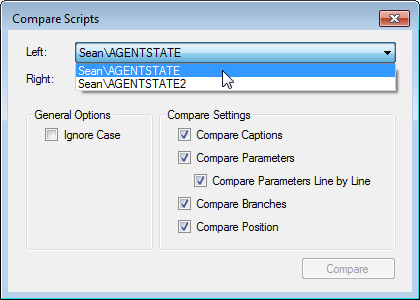
In the preceding image, two similar scripts are being compared. The AGENTSTATE script is selected in the Left field, and the AGENTSTATE2 script is being compared in the Right field. After you select the scripts you want to compare, you will select the items you want to compare, specifically captions, parameters, and branches, and position. Captions, parameters, and branches are found in the Properties window for each action, while position refers to the x- and y- coordinates of the action on the canvas.
When you run the comparison, you will see comparison values for two script as shown:
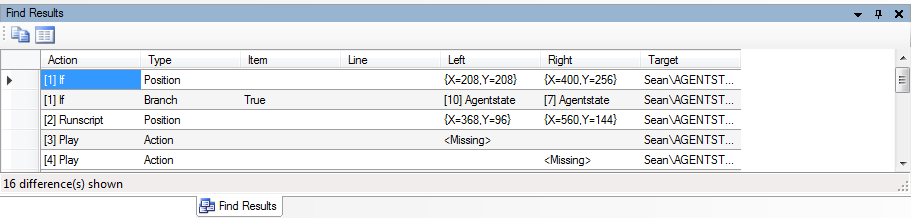
Because of the selections in the Left and Right fields in the Compare Scripts window, you will see comparison data in the Left and Right columns of the Find Results tab. If you remember, in the Compare Scripts window, you selected the types of data to compare. The Type column shows each data type. The Left and Right columns show the data for each selected type.
In the preceding image, the first line item shows the position coordinates of the IF action in both of the scripts being compared. Similarly, the second line item also compares the IF action, but instead of comparing position, it compares the branches, specifically, the True branch.
When comparing branches, take notice of two things in the Left and Right columns. First, the number in brackets is the unique identifier (from the Actions tab) that is assigned to the action when it is added to the script. For example, [10] means the action was the tenth action added to the script. Second, the action that appears after this unique identifier is the action that is connected. In the preceding image, the second line item shows IF. In the AGENTSTATE script, IF is connected to the AGENTSTATE action.
If you see <Missing> in the Left or Right column, then that script does not have that particular action. Similarly, if you see a blank value in the Left or Right column, then that action does appear in the script.

-
Run a comparison between two scripts by clicking Edit → Compare.
-
Set your comparison parameters in the Compare Scripts tab.
-
View the comparison data in the Find Results tab: