Scripts are sometimes very similar. However, simply looking the two scripts side-by-side to figure out the differences between them is not so easy. Two scripts may look exactly the same, but the actual differences are set in the properties.
The Compare feature in Studio is useful to perform a comparison of captions, parameters, branches, and canvas position between two scripts. For example, you may have two scripts that, from all appearances, look exactly the same, but by running a comparison, you can tell that the MENU in each script might have different branches and captions.
-
Open the two scripts you want to compare. You will see the tabs for the two scripts in your canvas:

-
If you have made changes to either script, make sure your changes are saved before you compare the scripts.
-
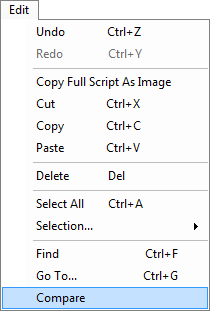
Click Edit and select Compare.
-
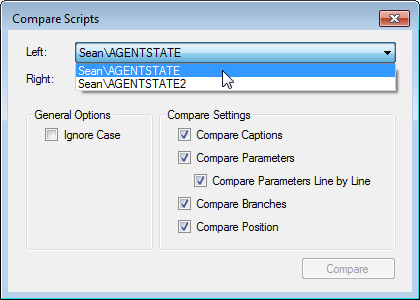
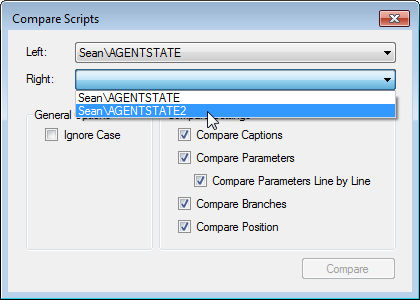
When the Compare Scripts window appears, select one of the open scripts in the Left field.
-
Select the script you want to compare in the Right field.
-
In the Compare Settings field, click the check boxes next to the items you want to compare. The captions, parameters, and branches are found in the Properties window for each action. The position refers to the X axis and the Y axis for each action in the canvas.
-
Click Compare to run the comparison.
-
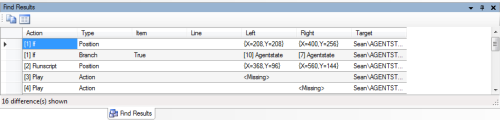
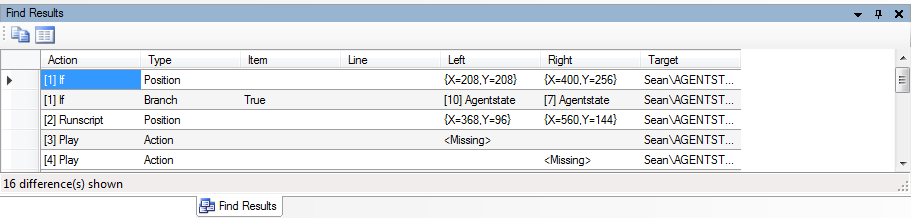
Click the Find Results tab to view the comparison.
-
(OPTIONAL): Show the Find Results tab if hidden
If the Find Results tab does not display in the interface, then you will need to add it to the interface.
-
Click View.
-
Select Find Results.
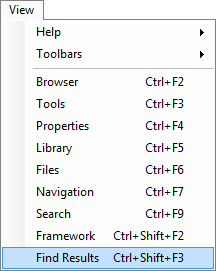
The Find Results tab will display in the interface.
-
-
Analyze the information in the Find Results tab to compare and contrast the differences between the two scripts.