Performance alerts automate the monitoring of agent performance in relation to their assigned objectives. Alerts can keep you informed when performance begins to slip, so you can proactively address issues and make the best use of your time.
You can only create or edit alerts for objectives that you own. You cannot set alerts for objectives based on inherited metrics. For example, a coach could not set up alerts if the metric for the objective was set up at a company level.
This topic explains how to create and edit performance alerts on the Objectives page.
Create Performance Alerts
- Click Account → Objectives.
- Use the filter to narrow the list.
- Click Load Performance Objectives.
- Select the entity for which you want to create performance alerts.
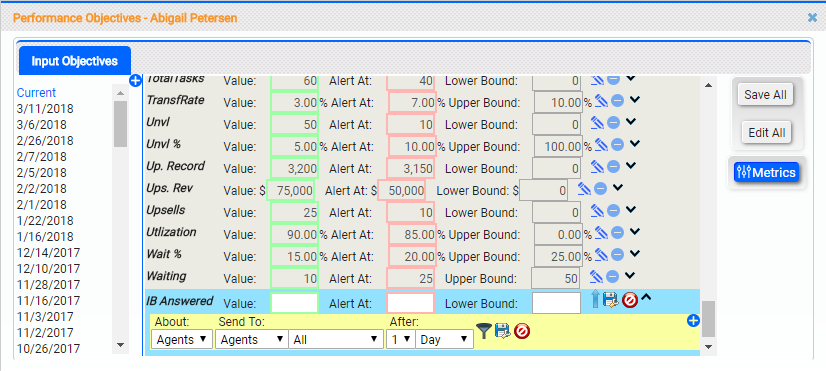
- Click the Expand icon (indicated by a downward-pointing angle bracket) for the metric on which you want to place an alert.
- Click the Add icon (indicated by a plus sign in a blue circle).
- Select a value for the About field from the drop-down list. You can only set alerts at the level of the objective or lower, and the About field displays only eligible values. For example, if the metric is for an agent-level objective, the only choice for this field is Agents.
- Select values for the Send To field from the drop-down lists. The first drop-down specifies the category of recipients, with values of Agents, Teams, Floors, Regions, or Company. The second drop-down populates a list based on your first selection. For example, if you select Teams in the first drop-down, the second drop-down lets you choose from the teams in your system.
- Select values for the After field from the drop-down lists. The first drop-down specifies a quantity, with values of 1, 2, or 3. The second drop-down specifies a unit of time, with choices of Day, Week, Month, or Hour. The default setting is 1 Day.
-
 Optional: Set an alert filter.
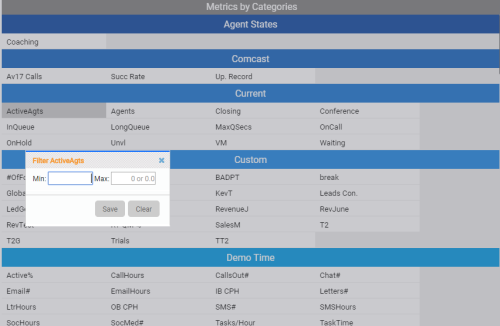
You can set up filters to minimize the likelihood of false alerts. For example, you might set a team alert to let you know when a team's inbound call volume has been below a certain level for an hour, so that you can assign them non-call work during slow periods. However, some of your teams are already dedicated to non-call work, and you don't want to get alerts for those teams. You filter out those teams based on a metric like Active Agents.
- Click the Filter icon.
- Locate the metric you want to use for your filter, click it, and select Add Filter.
- Type values in the Min and Max fields to set the limits for the filter.
- Click Save.
- Close the Metrics window.
- Click the Save icon (indicated by a floppy disk).
Edit Performance Alerts
- Click Account → Objectives.
- Use the filter to narrow the list, and then click the entity for which you want to edit performance alerts.
- Click Load Performance Objectives.
- Click the Expand icon (indicated by a downward-pointing angle bracket) for the metric with the alert you want to edit.
- Modify the alert settings. Refer to the previous section for more information on available options.
- Click the Save icon (indicated by a floppy disk).


