Required security profile permissions: Scripts Lock Override
When someone edits a script in Studio, Studio automatically locks the script so that other users cannot edit it at the same time. With the correct permissions, you can kick another user out of a script that the user has locked.
For more information, see Tabs Overview.
-
Open the Locked tab.
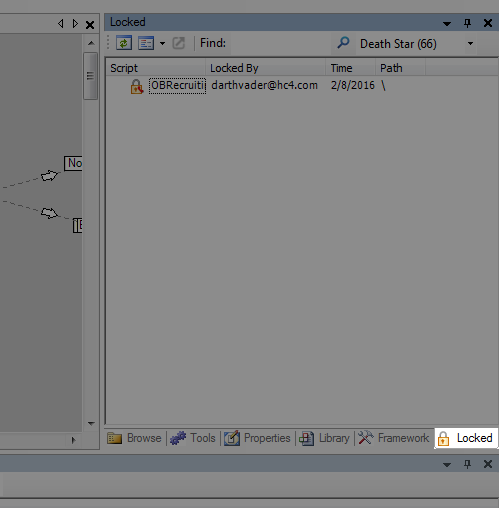
If you cannot see the Locked tab in your instance of Studio, click View → Locked or press [Ctrl], [Shift], and [F4] simultaneously on your keyboard.
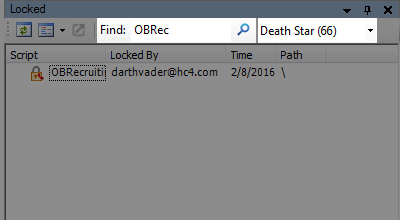
- Use the search feature or the business unitFile format associated with Microsoft Excel; may also be expressed as .xlsx drop-down to narrow down the results.
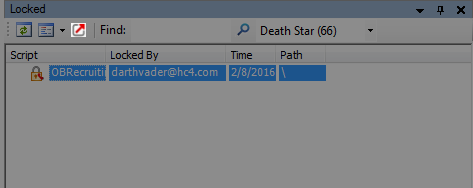
- Select the script you want to force unlock by clicking it. Click the Kick icon.
Alternatively, you can right-click the script and click Kick [username] from editing script.
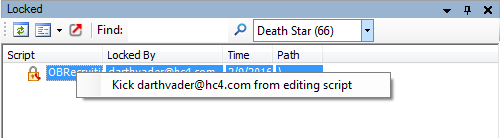
In this example, the user with the username of darthvader@hc4.com is kicked out of the script and can no longer edit it.
See Also
- Locked Tab — Details about all buttons, columns, and features available in the Locked tab.


