Studio provides several tabs, each enabling you to quickly access different features and functionality while still displaying the canvas and the script on which you are currently working. By default, not all of the tabs are visible, however, you can show or hide them by clicking View or Validation on the main menu and then selecting one of the tab options:
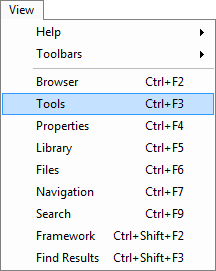
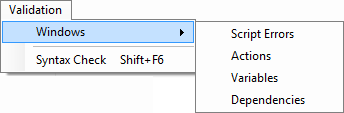
When a tab appears in its default position in the interface, you can identify it with the name on the tab:
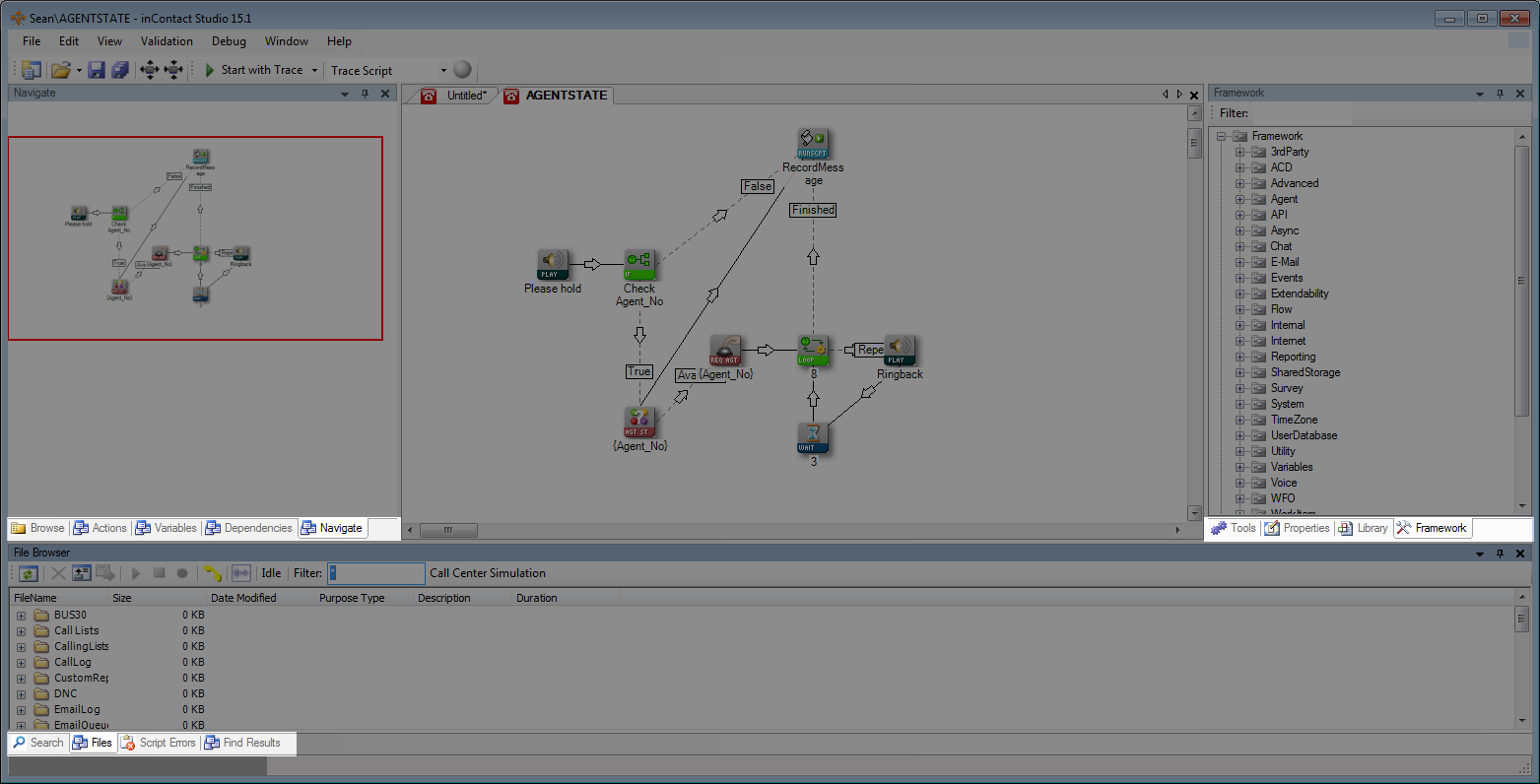
The tabs that you have open when you close Studio are the same tabs that appear the next time you open Studio. The following list provides a quick overview of the purpose for each tab:
- Actions
- Displays a list, in order, of the Studio actions that have been added to a script.
- Variables
- Shows the script actions that either create or reference each variable.
- Dependencies
- Shows relationships between actions in your script.
- Navigate
- Quickly navigates around larger scripts without using scroll bars.
- Browse
- Shows the files and folder designated for your business unitFile format associated with Microsoft Excel; may also be expressed as .xlsx and the scripts that have been saved to that directory.
- Tools
- Shows a default palette with the most commonly used actions and provides you with a way to create your own palettes to which you can add actions from the Framework tab.
- Properties
- Shows the properties of any action selected in an open script (can be viewed by right-clicking that same action in the canvas).
- Library
- Shows you the list of DLLs that are available to you to add to your script.
- Framework
- Retains the comprehensive list of Studio actions that you can add to scripts or to palettes.
- Locked
- Displays a list of scripts that Studio users have locked for editing. You can search, sort, and filter the list. You can also force a user out of a script he or she has locked so you or another user can edit it.
- Find Results
- Shows the results of comparing two scripts (using the Compare option in the Edit menu).
- Search
- Searches for a specific script by narrowing your search by partial script name, business unit, old and new versions, and script types.
- Files
- Contains a folder directory with all of the voice prompts (.wavWAVeform audio file; used to store audio bitstreams such as call recordings. format) used in scripts that are stored in your business unit. With the Prompt Manager features in the toolbar, you can listen to, delete, or even record over existing voice prompts.
- Script Errors
- Shows connectivity and other errors in a script to help you resolve scripting issues as they occur.
Related Tasks
- Browse Scripts with the Browse Tab
- View a List of Actions in your Script
- View Action Dependencies with the Dependencies Tab
- Re-record a Prompt from the Files Tab
- View Script Comparison Results
- Script from the Framework Tab
- Navigate a Large Script
- e..View Script Action Properties
- Search for a Specific Script
- Script from a Palette
- Override a Script Lock


