inView is a separately licensed module of NICE inContact. It provides users with the ability to view a wide variety of contact center metrics in one user-friendly portal. Users can easily configure dashboards that display at-a-glance information specific to their roles within the organization. If you do not currently use inView, talk to your NICE inContact account manager to learn more.
inView is accessed using a web browser at the URL provided by your NICE inContact team. Click the numbered areas in the following image to learn more about the inView user interface.
inView User Interface
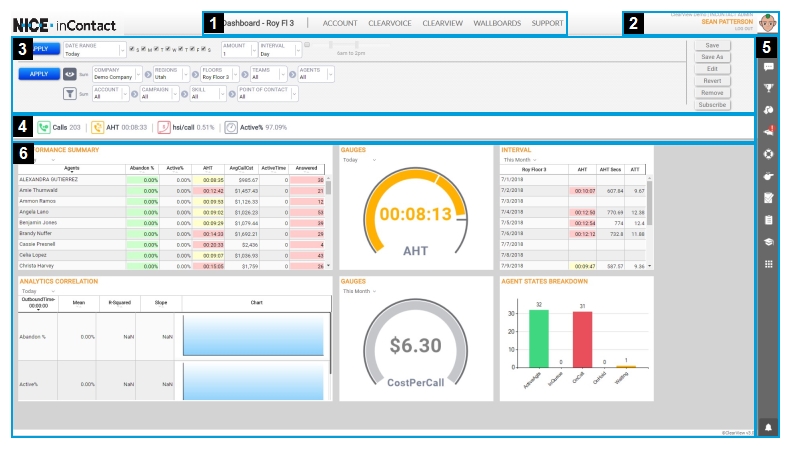
- 1—Menu Bar
- Displays the name of the current page or dashboard, followed by menu choices that provide access to various configuration options and settings:
- Account — Sub-menu of administrative options in the areas of Admin, Data, Gamification, and Users
- Clearvoice — Forms
- Clearview — Access to personal and shared dashboards
- Wallboards — Access to any wallboards in your system. Wallboards are dashboards that have been designed for display on large screens in a contact center or similar environment
- Support — Documentation and Feedback links
- 2—User Information
- Provides access to your user profile, where you can customize your avatar, view your current gem and coin counts, see any badges you have earned, and more.
- 3—Master Filter
- Allows you to configure default filtering options for all widgets in a dashboard. You can filter by date parameters, teams, campaigns, points of contact, and other settings configured in your system. You cannot use the master filter with a shared dashboard unless you have permissions to do so. The master filter can be collapsed and expanded as needed using the Expand icon (indicated by a downward-pointing angle bracket) on the metrics ticker.
- 4—KPI Bar
- Displays one or more key metrics. This allows a manager or supervisor to ensure company-based metrics are always prominent on the screen and are not lost with all the other metric options available.
- 5—Toolbar
- Allows you to access inView features used in day-to-day work. Your security settings affect which features you can see. Available features include:
- Rules — Displays a listing of any rules that apply to you
- Messaging — Provides access to the inView instant messaging feature
- Achievements — Allows you to view achievements for all users (based on your security rights) or to search for achievements by user. Achievements are listed in descending order by date earned.
- Challenges — Allows you to view all current challenges, see challenge invitations you have received, create challenges, and view challenge history.
- Announcements — Allows you to create announcements, view announcements that you have received and that you have previously shared, and search for announcements by keyword.
- Work Aids — Allows you to upload work aids; that is, documents created in other applications (such as manuals or checklists). You can also view previously-uploaded work aids, filter the list of work aids by folder (category), and search for work aids by keyword.
- Coaching — Allows users with coaching permissions to create new coaching sessions, to view scheduled and suggested coaching sessions, and to access the forms for those sessions.
- Tasks — Allows you to create tasks for yourself or others, view a list of your tasks, view a list of tasks sent to others, and filter these lists by completion status.
- Surveys — Allows you to access a list of internal surveys, created in inView, that you can complete and view a list of surveys you have already completed.
- Proficiency Changes — Allows users with appropriate permissions to view recommended proficiency changes, and to approve or reject those changes. Changes are suggested based on agent performance in regard to gamification rules.
- Modules — Allows you to select from the pre-built dashboard modules to which you have security access, and configure subscriptions for reports based on modules that support this feature.
- Notification Center — Displays real-time notifications in the following categories: Messaging, Challenges, Announcements, Work Aids, and Tasks. Up to two items are displayed per category. Click See More to expand the list within a category, and See Less to collapse the list. You can click any item in the Notification Center to launch it.
The Notification Center displays all notifications you have received since you logged in, and automatically clears all notifications when you log out. You can manually clear individual notifications by clicking the X that appears as you hover to the right of the notification, or you can manually click to Clear All at the top of the Notification Center.
- 6—Dashboard
- Display area for modules that provide at-a-glance information about contact center metrics. You can have multiple dashboards configured for different purposes. Depending on your permissions, you can also configure custom dashboards, and create dashboards to be shared with other users.


